FieldCue User Guide & Help Center
Learn how to connect your account, monitor calls, automate CRM data extraction with FieldCue Autofill, and orchestrate pipeline stage movements with FieldCue Pipeline Sync.
📖 FieldCue Platform Reference Guide
Welcome to the User Guide. Select a section from the navigation index below to learn how to connect your CRM, automate pipelines, manage call recordings, and configure custom integrations.
🔗 User Guide Navigation Index
🔌 1. GHL Connection
#connecting-setupConnect GoHighLevel sub-accounts and authorize API permissions for sync.
📊 2. Call Queue
#monitoring-queueMonitor incoming call queue, statuses, and live ROI/productivity metrics.
📝 3. Fields Autofill
#mapping-fieldsConfigure FieldCue Autofill to extract key data from transcripts to GHL custom fields.
📊 3.4. Sales Audit Sync
#sales-auditSync script compliance, buying likelihood, temperatures, and coaching metrics.
👥 3.6. Rep Aliases
#representative-aliasesConsolidate display name variations (Emily, Emily Cathey, UUIDs) case-insensitively.
🤖 3.7. Monthly Coaching
#monthly-coaching-reportsSynthesize and review monthly AI sales coaching, stats, trends, and priorities per rep.
🎓 3.7.1. My Coaching Report
#my-coaching-reportEvery rep can read the coaching report written about them, and only about them.
🎯 3.8. Lead Quality
#lead-quality-intelligenceAnalyze lead qualification, junk reasons, attribution coverage, and revenue by campaign.
🖨️ 3.9. Sales Sheet Printing
#sales-sheet-printingConfigure automatic nightly printing, printer email setup, and browser print previews.
🚦 4. Pipeline Sync
#custom-transitionsDefine semantic outcome rules to automatically move GHL opportunity stages.
⚙️ 5. Default Automations
#sync-vs-automationsSet default success/failure fallback stages and automate follow-up task syncing.
📥 6. Bulk Queue Actions
#bulk-actionsManage records at scale: archive, export JSON/Markdown, restore, or delete.
💰 7. ROI & Overrides
#manual-outcomesManually correct AI scores and customize labor rates/ROI coefficients.
🤝 8. Partner Program
#affiliate-programEarn monthly recurring commission by referring new locations or sub-accounts.
1. Connecting & Setting Up Your Account
To begin analyzing calls, you need to connect your GoHighLevel sub-account and set up a webhook trigger. This ensures that every time a recording is available, it is automatically sent to FieldCue for analysis.
Step-by-Step Connection
- Click the 🔌 Connect GoHighLevel button in the top navigation bar.
- Log in with your GoHighLevel agency or location credentials, select the sub-account (location) you want to link, and authorize permissions.
- Once redirected, navigate to the Setup Guide in the menu.
- Copy your unique Webhook Ingestion URL. It belongs to that sub-account alone. If your workflow was set up before this URL existed and still uses FieldCue’s original shared key, the Setup Guide says so at the top of the page — that shared key stops working on 31 December 2026, and swapping in the new URL is the whole fix.
- In GoHighLevel, go to Automation → Workflows and create a workflow triggered by Call Status completed or Recording Available.
- Add a Webhook step to post to the copied URL.
⚖️ Recording Consent — a Required Step
FieldCue never records a call. It receives a recording your phone system already made, which makes you the recording party and every consent obligation yours. Twelve states require the consent of every participant, two more should be treated the same way, and there is no reliable rule for which state’s law governs a call that crosses a line — so disclose on every call, in every state, and let the disclosure land on the recording.
Because of that, the setup wizard stops on a consent step right after you connect your CRM, and FieldCue will not process a call until you complete it. It asks how you disclose recording, which states you operate in — flagging the ones that need everyone’s consent, with a script you can copy — and whether you have given your reps the electronic monitoring notice their state requires, since scoring your own reps is a separate duty that New York and Connecticut both put in writing. Recordings that arrive before you confirm are held, not lost: they process once you do. If your account was already running before this step existed, your calls keep processing through 30 September 2026 while you get to it — Settings shows the countdown, we email you two weeks out, three days out and again on the last day, and nothing you have already sent is affected. If the date passes and calls do start being held, we email you again to say so — how many are waiting and how long the oldest has been there — so you are never left guessing why the queue went quiet. Your dashboard says the same thing without waiting for an email: while calls are being held, a banner sits at the top of it naming how many are waiting and how long the oldest has been there, and it stays there — changing to say the backlog is on its way back — until the last held call has run. Everyone on the team sees it, not only whoever set the account up. After that date, calls from a location that still has not confirmed are held rather than analyzed; they are not deleted, and processing resumes when you confirm — including the ones held while you were away, which come back oldest first over the following hours. You can change your answers any time in Settings → Recording Consent, and the full state list and scripts stay on the Setup Guide. This is guidance, not legal advice; your obligations are in section 3 of the Terms.
👥 Invited Team Member Onboarding
When a team member accepts an invitation to an existing location, they bypass the setup wizard and land directly on the main dashboard. They immediately join with the location owner's active sales script, business context, and custom field mappings.
Before you can invite anyone, confirm your own email address using the link we send when you register. Call processing, reports, and every other feature work straight away — confirmation gates invitations only, because sending mail in your name is the one thing we cannot do on an unproven address. If the link has expired, use the Resend Link button in the banner at the top of the page. Team members who join by invitation are already confirmed: the invitation itself arrived in their inbox.
Invited members are also exempt from the work-email requirement that applies to new accounts: you sent the invitation, so a rep can accept it on whatever address it reached them at.
✅ The Setup Checklist
Alongside the wizard, a checklist on your dashboard tracks the eight things a location needs before it is genuinely running: your profile details, the GoHighLevel connection, the recording-consent attestation, your field mappings, your sales script and goal, the ingestion webhook, a first processed call, and a first summary read. It is the same list on the dashboard widget and on Settings, and the percentage is simply how many of the eight are done.
Most steps have a Mark Done button for the case where you handled something outside FieldCue. Two do not: the recording-consent attestation and the ingestion webhook. Those tick themselves when the attestation is actually on file and when a call actually arrives, because a checkbox saying the webhook works would not make calls appear, and a checkbox saying you have consent is not an attestation.
🏢 Running More Than One Location
You can connect as many GoHighLevel sub-accounts as you run. Open the location picker in the top navigation and choose + Connect another location, or use the same button in Settings → GoHighLevel Integration. You are sent to GoHighLevel to pick the next sub-account, exactly as you did the first time. Only the account owner sees this — a team member invited to your location connects nothing.
Setup is per sub-account, not per login. The location you connect next starts its own setup wizard — consent attestation, sales script and goal, field mappings, ingestion webhook and first call — even though you have already finished the first. That is deliberate: none of those answers carry across. A script written for one location’s offer, and a field map built against one location’s CRM, would be wrong for the next. Until the new location’s consent confirmation is done, its recordings are held rather than analyzed — intact, and processed the moment you confirm.
Your finished locations are unaffected. Each keeps its own calls, reps, scripts, field mappings and webhook URL, nothing crosses between them, and switching back to one you have already set up takes you straight to its dashboard. The checklist you see always describes the sub-account you are currently viewing. What is shared is your plan: the minutes and calls it includes are one pool across every location you own, not a separate allowance for each.
Disconnecting a location is not deleting it. Settings → GoHighLevel Integration → Disconnect this location erases the GoHighLevel credentials FieldCue stores for that sub-account and stops processing its calls. Nothing else changes: your calls, transcripts, reps, scripts and settings all stay, and reconnecting later brings the integration back with every one of them intact. Use it when you want us to stop holding your CRM credentials but keep your history — until now the only way to sever the connection was to delete the sub-account, which takes the history with it. One thing it does not do is uninstall FieldCue from your GoHighLevel account; to revoke the permission on GoHighLevel’s side as well, uninstall FieldCue from that location in their marketplace, which disconnects it here too.
2. Monitoring Your Call Queue
The main Dashboard gives you an active overview of your incoming calls. It displays total metrics (completed, pending, or failed calls) and lists your recent call log queue.
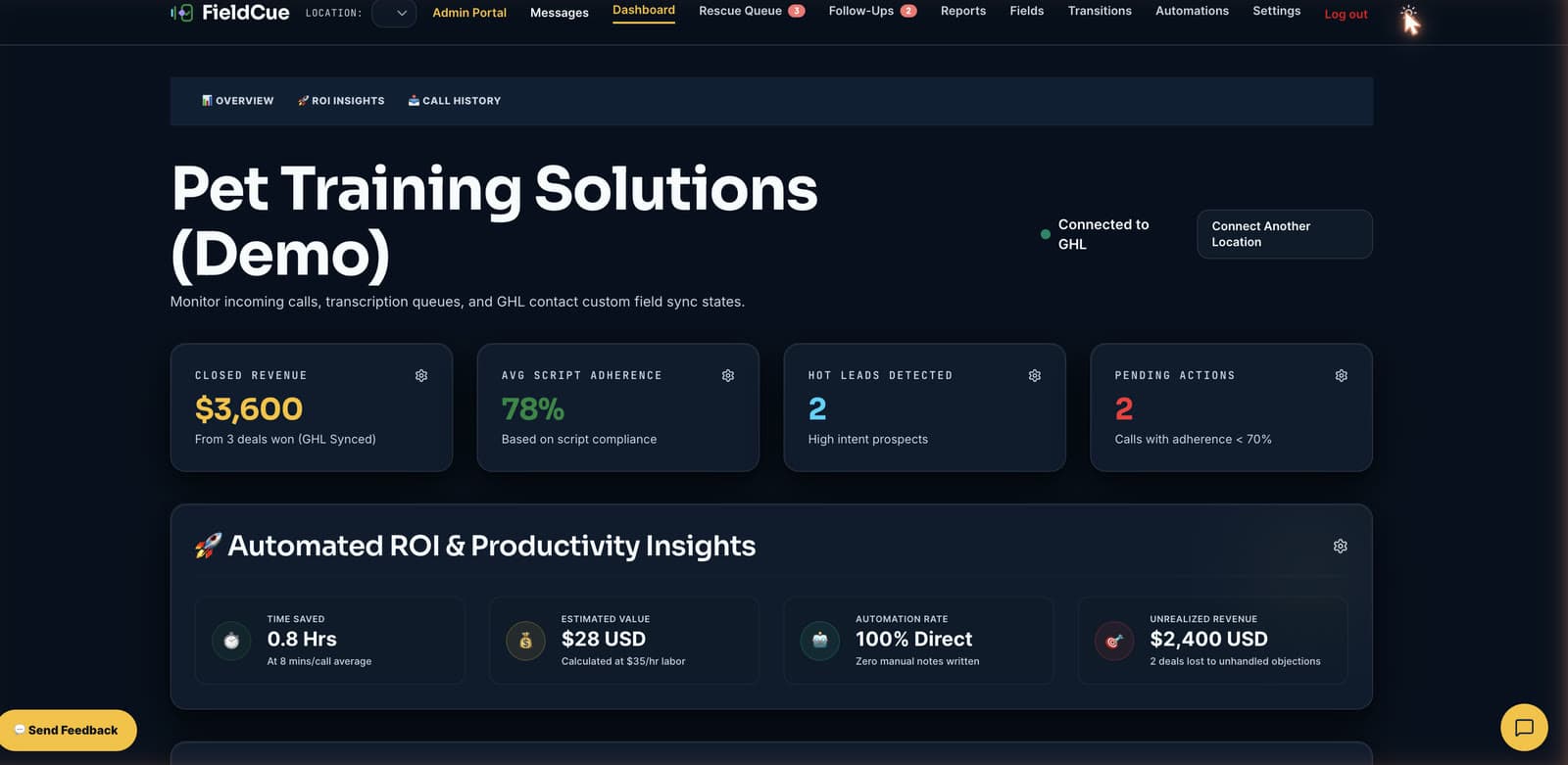
Queue Functions & Benefits:
- Real-time status badges: Instantly see whether a call has finished processing, is pending transcription, or encountered an ingestion issue.
- Quick Previews: Read a concise, 1-2 sentence call outcome summary directly in the table row without opening the full details.
- Inspect Details: Access complete speaker-separated transcripts, extracted CRM answers, and call outline logs.
- Live Productivity Insights: View automatically computed metrics including total hours saved and estimated labor value generated by automated notes.
3. Mapping Custom Fields (FieldCue Autofill)
Save hours of manual data entry by instructing FieldCue Autofill to automatically extract key information from your sales calls—such as customer budget, pain points, or timeline—and write them back to your GoHighLevel CRM custom contact fields.
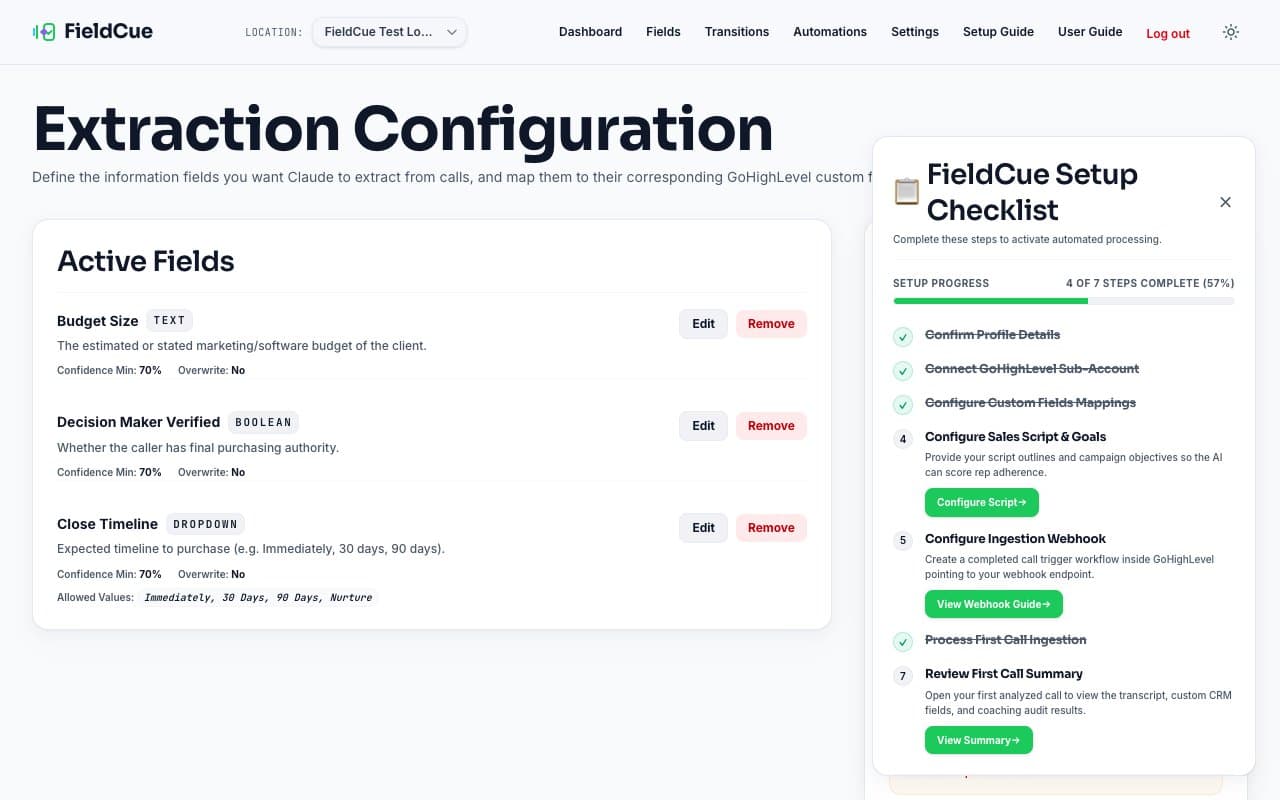
How to Map a Field:
- Navigate to the Fields page.
- Select your target GoHighLevel field from the dropdown—the system automatically resolves the name, type, and options.
- Write clear, simple instructions for what the AI should look for in the transcript (e.g. "Identify which service the caller is asking about").
- Set a Confidence Minimum threshold (e.g. 70%) to ensure values are only synchronized to your CRM when the AI is highly confident.
- Choose whether to Overwrite existing contact details or only fill fields when they are blank.
3.5. GoHighLevel Sales Audit & Compliance Sync
Enable the Sync Sales Audit option under AI Prompt & Script Tuning settings to push key call quality metrics, buying likelihood, script compliance scores, emotional indicators, and coaching insights directly to custom contact fields in GoHighLevel after each call completes.
Under Auditing Coach & Philosophy, managers choose the framework the AI grades against—Diagnostic Discovery & Value-Stack Close is the FieldCue default. Alternatives include Balanced Consultative for neutral auditing, Tactical Empathy & Calibrated Questions, High-Urgency Closing, Question-Led Persuasion, Gap Diagnosis, and others, each changing how the AI evaluates transcripts, grades script adherence, and generates rep coaching notes. Each framework is named for the technique it scores rather than for a particular trainer; if you previously selected one by an author's name, your setting carries over to its equivalent automatically.
How to Set Up Custom Fields in GoHighLevel
To enable syncing, you must manually create the matching custom fields inside GoHighLevel under Settings → Custom Fields. Ensure the names match the standard configurations below exactly:
| GHL Field Name | GHL Custom Field Type | Description & Expected Values |
|---|---|---|
| Script Adherence | Numeric or Single Line Text | The percentage (0-100%) score representing how well the agent followed the script. E.g., 75 or 75%. |
| Call Goal Status | Single Line Text | The outcome status of the call. E.g., Achieved, Not Achieved, or Partial. |
| Lead Temperature | Single Line Text | The buyer temperature inferred by the AI. E.g., Cold, Warm, or Hot. |
| Buying Likelihood | Numeric or Single Line Text | Probability score (0-100%) of closing the deal. E.g., 85 or 85%. |
| Emotional Cues | Multiline Text | Detailed summary of prospect's tone, emotional reactions, excitement, or objections. |
| Call Coaching Feedback | Multiline Text | Constructive coaching insights and action items highlighting agent improvement areas. |
3.6. Representative Alias Unification & Unassigned Calls Resolution
FieldCue automatically maps and consolidates different sales representative identities (including cryptic GoHighLevel UUIDs, short display names like "Emily", and full names like "Emily Cathey") into a single canonical representative identity. This ensures your leaderboards, performance analytics, and coaching reports aggregate call metrics accurately without duplicating users.
If a call displays as Unassigned in the Recent Calls queue but confirms an assignment under a representative ID in the full record, the system automatically resolves the name mapping in the background:
- CRM User Sync: Friendly names are automatically queried from GoHighLevel.
- AI Fallback Name Extraction: If the CRM API does not yield a match or fails, the AI identifies the speaking representative from introductions in the transcript (e.g. "Hi, this is Emily") to map the raw ID.
- Alias Grouping: Shorter display names are dynamically unified with full names in the same location (e.g. "Emily" groups under "Emily Cathey") to maintain a clean, aggregated leaderboard.
- Manual Account Combining: Account administrators can manually link duplicate sales rep accounts directly in Settings → Sales Rep Name Resolution using the Combine / Link Rep Users panel. Combined reps appear as a single consolidated representative across all dashboards, leaderboards, and reports. (Note: Account linking affects newly generated reports, coaching PDFs, leaderboards, and dashboard metrics; historical monthly reports compiled prior to linking remain unchanged.)
3.7. Monthly AI Coaching Reports (Managers & Admins only)
FieldCue synthesizes a comprehensive performance coaching report for each representative at the end of each calendar month. The report aggregates all key metrics—such as total calls, close rates, script adherence compliance, and generated revenue—and tracks their percentage trends relative to the prior month.
Additionally, an AI-driven coaching review compiles strengths, recurring weaknesses, top 3 priorities for the upcoming month, and a constructive evaluation of their progress over time. Reports are automatically compiled on the 1st of each month for the prior calendar month. They can also be manually generated or regenerated on-demand by managers and administrators from the Reports dashboard, and exported/printed as a formatted document using the 📄 Download PDF button.
3.7.1. My Coaching Report (every signed-in user)
A representative can read the coaching report written about them without asking a manager for it. My Coaching in the top navigation opens /my-coaching, which shows the same stats, trends, and written review a manager sees on the Reports dashboard - for the signed-in user only. There is no rep picker: the report is looked up from the CRM user your own membership is linked to, so the page cannot be pointed at a colleague.
Month selector: the newest report loads first; the dropdown lists every month a report exists for. Print opens your browser's print dialog for a paper or PDF copy.
If nothing appears: the page says so plainly. "No coaching report is kept about you" means your account is not linked to a CRM user, so no report has ever been keyed to you. "No report for this period" means the month has not been generated yet - reports compile on the 1st for the prior month.
Read-only: the page cannot generate, regenerate, or edit a report. Generation stays with managers and administrators on the Reports dashboard.
Why it exists: the report is an assessment of a person's work, and the person assessed is entitled to see it. The page states in plain language that no employment decision is made automatically from it and that a human being is responsible for any decision that follows.
SCREENSHOT REQUIRED: My Coaching Report - /my-coaching - State: a signed-in rep viewing their own most recent monthly report with the month selector populated
3.8. Lead Quality & Revenue Intelligence
The Lead Quality Report breaks down inbound call performance, lead qualification rates, and generated revenue by marketing campaign and ad source.
Attribution Coverage Notice: Attribution source data (UTM campaign, source, medium, session source, referrer, gclid/fbclid) is captured directly from GoHighLevel contact records when prospects submit forms or surveys on GHL funnels/websites. First-touch attribution is prioritized for campaign grouping, while last-touch interactions are included in overall attribution coverage metrics. Direct incoming calls from non-web contacts will be grouped under unattributed.
Role Visibility: Sales representatives (members/viewers) see performance metrics scoped to their assigned calls. Managers see calls assigned to their team as well as unassigned calls, while administrators see location-wide lead quality intelligence.
Junk Sub-Classification: Non-sales calls are automatically categorized into explicit junk reasons (such as spam/robocall, wrong number, job applicant, vendor solicitation, existing customer, customer support, out of area, out of scope service, unqualified budget, duplicate, or voicemail). A recording that is only the representative leaving a voicemail is classified non-sales, so it is not script-scored and does not count toward KPI thresholds or rep benchmarks.
SCREENSHOT REQUIRED: Lead Quality Report - /reports/lead-quality - State: Lead Quality Dashboard with campaign revenue breakdown & attribution coverage card
3.9. Sales Sheet Printing & In-Person Briefs
FieldCue automatically compiles formatted, single-page-optimized pre-call sales sheets designed for representatives going on in-person consultations. These sheets synthesize key prospect data, pet environment notes, buyer motivation, and AI-generated closing strategies into an easily readable document.
🖨️ Automatic Nightly Dispatch
FieldCue identifies upcoming appointments scheduled in your location's timezone. When pre-call briefs are processed, the system generates the sales sheet with AI and emails the formatted briefing sheet automatically to your registered printer email address (such as Epson Connect Email Print) ahead of upcoming appointments.
⚙️ Sales Sheet & PDF Custom Field Setup
Navigate to Settings → Sales Sheet & Printing Connection. Under the GHL Contact File Upload Custom Field dropdown, select your preferred GoHighLevel FILE_UPLOAD custom field or click + Create 'Sales Sheet' field in GHL to auto-create one. After each sales call completes, FieldCue automatically compiles the full, formatted Sales Sheet PDF and uploads it directly to the prospect's GHL contact record.
To enable optional automatic nightly printing to network printers, check Enable Automatic Daily Print Dispatch and enter your Epson printer email address (e.g. example@print.epsonconnect.com).
📄 On-Demand Manual Dispatch & Browser Print Preview
- Instant Email Dispatch: From the Pre-Call Briefs list on the main dashboard, click 🖨️ Send to Printer to send a sales sheet directly to your printer on-demand. Each brief displays a status badge reading either 🖨️ Printed or 🖨️ Unprinted, along with the dispatch timestamp once sent. If no printer email address is saved, the system alerts you to configure one under Settings first.
- Browser Print View: Click Print Sales Sheet on any call details page to open the formatted print view (
/calls/[id]/print). The browser print dialog launches automatically after rendering, and a Print Locally button is available as a manual fallback. (Note: Calls in a gated state redirect to the main call view rather than rendering a sheet.)
📋 What Is Included on the Sales Sheet
Each sales sheet aggregates:
- Prospect & Setter Details: Customer name, decision makers, appointment time, lead source, and phone setter name.
- Pet & Household Context: Dog name, age, household environment, kids, other pets, and bite history (visually flagged in red when present).
- Sales Intelligence: Previous training experience, buying fears, buyer temperature with reasoning, and objections missed by the phone setter.
- AI Strategy Calibration: Custom in-person consultation strategy, recommended closing strategy, and up to 3 predicted objections with tailored counter-scripts.
Note: The sales sheet layout is styled using a compact type scale designed to fit on a single printed page, but unusually long consultation notes may flow naturally onto a clean second page.
4. Custom Pipeline Transitions (FieldCue Pipeline Sync)
Ensure your sales pipeline stays updated in real-time. Define semantic outcome rules in FieldCue Pipeline Sync to automatically move GoHighLevel opportunities to specific stages based on what happened during the conversation.
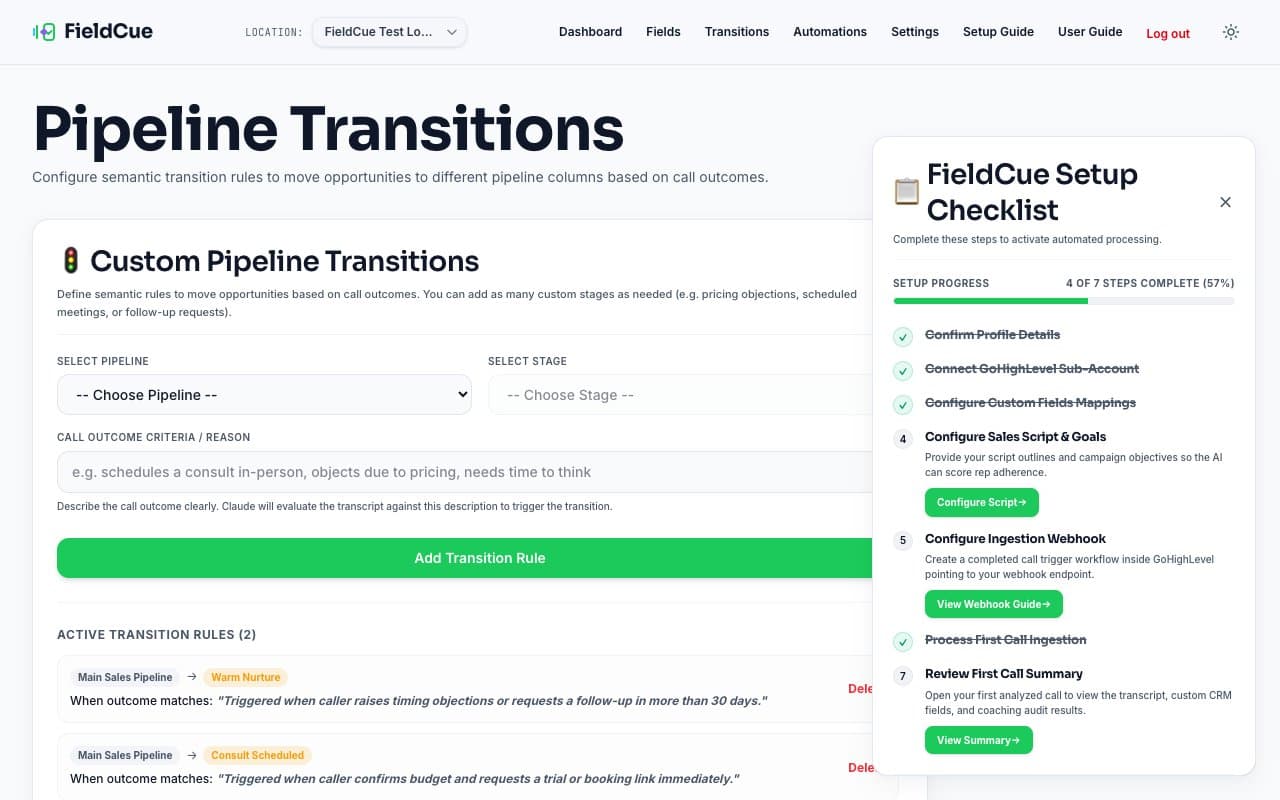
Creating a Transition Rule:
- Navigate to the Transitions page.
- Choose the target GoHighLevel Pipeline and select the specific Stage to move the opportunity into.
- Describe the semantic trigger criteria under Call Outcome Criteria (e.g., "schedules a consult in-person", "objects due to pricing", or "requests a follow-up email").
- The AI evaluates the transcript after each call. If the conversation outcome matches your criteria, the contact's pipeline opportunity shifts automatically.
5. Pipeline Sync vs. Automations (FieldCue Tasker)
While both features update your pipeline stages in GoHighLevel, they serve distinct, complementary purposes. Understanding how they differ allows you to design a robust, automated sales flow.
🚦 FieldCue Pipeline Sync
Custom Semantic Triggers: Moves opportunities based on the specific context of the conversation.
- Triggered by unique call outcomes (e.g., pricing objections, consults booked, or callback requests).
- Evaluates semantic descriptions of the call conversation.
- Configured and managed on the Transitions page.
⚙️ FieldCue Tasker
System Defaults & Tasks Sync: Manages global fallback settings and checklist creation.
- Sets binary fallback stages: Goal Achieved and Goal Failed (used if no custom transition rules match).
- Handles objection-specific failure redirects (up to 5 reasons like "pricing objection" or "too far away").
- Automates GHL Tasks: Converts AI-identified next steps into CRM to-do tasks.
- Configured and managed on the Automations page.
🛠️ Troubleshooting & Common Issues
Issue: Completed calls are not appearing in my dashboard queue
- Verify that the Webhook Ingestion URL in your GoHighLevel workflow matches the unique URL in your Setup Guide (/integration), including the security token (
?secret=...). - Ensure your GoHighLevel workflow is active/published and the test contacts have valid call recording attachments.
- Contact an administrator to review the webhook ingestion log payload files to confirm if payloads were received but skipped.
- If the ingestion key was rotated on the Setup Guide page, the old URL stops working immediately. Paste the current URL into every GoHighLevel workflow that posts to FieldCue.
Issue: My ingestion URL may have been shared or exposed
- Your ingestion URL contains a key unique to your sub-account. Anyone holding it can submit call events for your sub-account — and only yours; it cannot be used against another customer.
- Open Setup Guide (/integration) and choose Rotate key. The previous URL stops authenticating the moment you confirm.
- Update every GoHighLevel workflow with the new URL straight away. Until you do, completed calls will not reach FieldCue.
Issue: Custom fields are not updating in GoHighLevel
- Check the AI confidence score in the call's details view. If the confidence level is below your field's configured Min Confidence threshold, the system skips syncing to prevent inaccurate data.
- Verify that the field's mapped ID corresponds to the correct custom field ID in GoHighLevel (Settings → Custom Fields).
- Check that Overwrite is set to 'Yes'. If set to 'No', the system will never replace an existing value in GoHighLevel.
Issue: Follow-up tasks are not showing up on GHL Contact records
- Verify that Automated GHL Tasks Syncing is turned ON in your Automations (/automations) settings page.
- Check if follow-up items were detected in the call transcript. If no next steps, agreements, or requests were made during the call, no tasks are generated.
6. Bulk Actions & Archiving Workflow
Manage your call queue efficiently at scale. FieldCue allows you to select multiple call records from the main dashboard and execute operations in bulk from a dropdown selector.
Supported Bulk Actions
📥 Active Queue Tab Actions
- Archive Calls: Move selected calls out of the active queue into the Archived Calls tab.
- Download JSON: Export complete structured metadata of selected calls as a single JSON file.
- Create Archive (.md): Bundle full transcript lists and AI summaries into one formatted Markdown file.
- Delete Calls: Permanently delete selected calls. Requires double confirmation.
🗄️ Archived Calls Tab Actions
- Restore to Active: Move calls back from Archive to your Active Queue, restoring active sync context.
- Download JSON & Markdown: Also supported for archived calls.
- Delete Calls: Permanently purge archived records.
Deleting a Single Call
You do not need a bulk selection to remove one record. Open the call from the queue and use the 🗑️ Delete Call control in the header of the call inspector page - two clicks, the control and the confirmation. On a Face2Face record it reads Delete Meeting; it is the same control. The same control is available inline on each row of the queue.
Deleting a call permanently removes its record, transcript, processing logs, extracted field results, and any audio uploaded to FieldCue for it. It cannot be undone and support cannot recover it. This is the control to use when somebody objects to having been recorded: the Recording Policy at /recording-policy tells you to delete the call, and this is how.
7. Manual Outcome Overrides & Custom ROI settings
Take control of your data accuracy. FieldCue allows authorized operators to manually correct AI outcome scores, and customize ROI factors to reflect actual operational costs.
✍️ Manual Outcome Adjustments
If an AI call audit fails to correctly capture a metric due to bad recording quality or conversational edge cases, users with Super Admin, Admin, or Manager roles can manually adjust the scores.
- Click Adjust Outcome in the Sales Intelligence section on the Call Details page.
- Override Goal Status text, Script Adherence %, Lead Temperature, and Close Likelihood %.
- Saves are fully audited: logs capture who performed the change and when.
- Manually adjusted outcomes display a pencil
✍️icon across all dashboard lists.
💰 Configurable ROI Factors
By default, FieldCue estimates return on investment using $30/hour labor costs and 5 minutes saved per call. Authorized managers can customize these settings to match exact business parameters:
- Navigate to the Settings & Configuration page.
- Under the ROI Calculator Factors Settings card, enter your customized minutes saved and labor hourly rate.
- Dashboard ROI panels automatically update all calculations.
- Supports instant reset back to system defaults.
8. FieldCue Affiliate Partner Program
The FieldCue Partner Program allows marketing consultants, SaaS agency owners, and content creators to earn monthly recurring revenue by referring new locations and sub-accounts.
🤝 Program Overview & Terms
- Lifetime Commission: Earn 30% monthly recurring commission on every referred paid subscription invoice.
- Cookie Window: Cookie remains active for 60 days after click.
- Safety Escrow: Standard 30-day holding escrow to manage customer chargebacks or refunds.
- Payout Rules: Batch processing on the 1st business day of each month for balances above $20 via PayPal.
- Affiliate Disclosures: FTC guidelines require partners to display a clear disclosure, such as: "If you click a link and buy, we may receive a commission at no cost to you."
- Program Agreement: Registration is handled by Rewardful on their own domain, so the last step FieldCue controls is the button that sends you there — which is where you are asked to agree to the Affiliate Terms, including that disclosure obligation. The tick box appears on /affiliates once those terms are published; until then the disclosure requirement stands on its own and is stated on that page and in the affiliate guide.
🛡️ Admin & Integration Operations
The affiliate program integrates with Rewardful and Stripe to track clicks and invoice commissions automatically.
- Site Key Auth: Admins configure the portal by setting
NEXT_PUBLIC_REWARDFUL_SITE_KEYin environment variables. - Stripe Integration: The system retrieves the client cookie (
rewardful.referral) and attaches it as Stripe metadata (referral/rewardful) on checkout. Stripe webhooks notify Rewardful of completed invoice charges. - Manual Overrides: If tracking fails, admins can manually map a customer to a partner directly inside the Rewardful or Stripe dashboards.
Leaderboards & Plan Access
FieldCue compiles an internal partner leaderboard to recognize top advocates. Leaderboards are updated daily, ranking affiliates by active referred subscription counts.
- Feature Access: Free registration is open to all tiers. Connecting referral tracking links does not require a paid plan.
- Package Entitlements: Leaderboard displays and advanced partner metrics are unlocked on the Pro package and higher (Beta and Trial accounts have all features enabled).
- Permissions: Admin views and configuration controls under the Admin Portal are restricted to
platform_owner,app_manager, oradminroles.
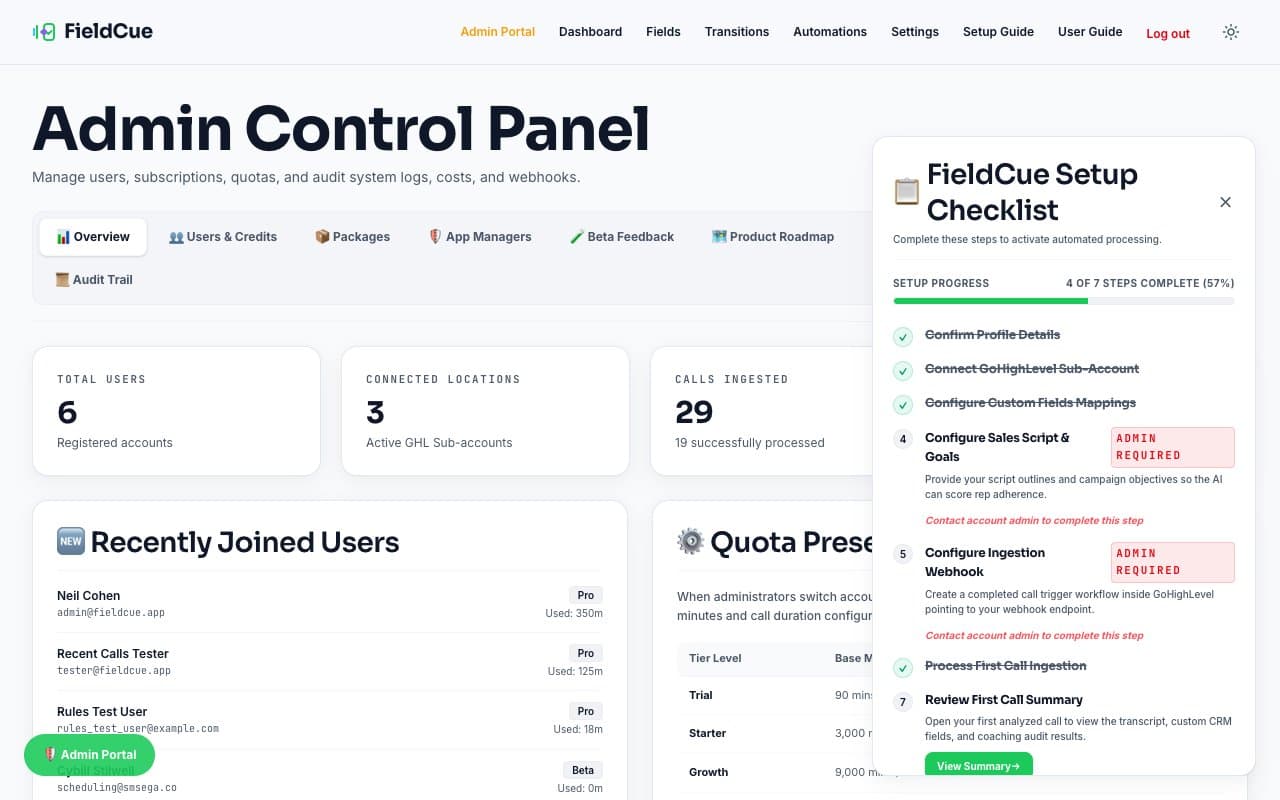
Admin Oversight & Configurations:
As a platform administrator, accessing the Admin Portal (/admin) allows you to view connected locations, track total processed minutes, adjust package overrides, and audit OpenAI/Anthropic developer API cost transactions.